Install OlivePDF on Your Device.
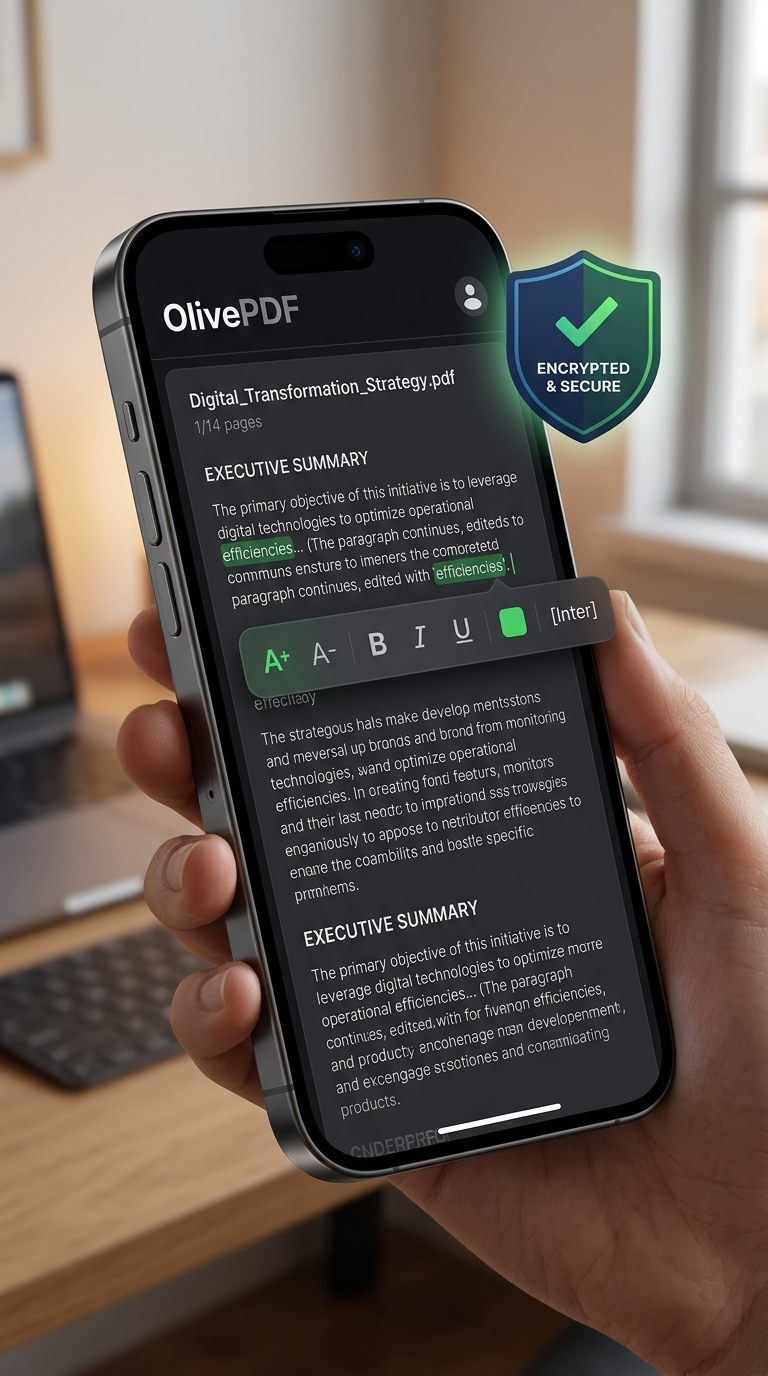
Install OlivePDF as a Progressive Web App (PWA) to enjoy standalone private execution offline.
Progressive Web App
No app store accounts required. Run OlivePDF locally in a sandbox, accessible directly from your home screen or desktop shortcuts. Shared browser resources keep the app footprint incredibly light.
Install on Mobile
Safari (iOS) or Chrome (Android)
Install on Desktop
Chrome or Edge address bar
Installation Instructions
Apple iOS (iPhone & iPad)
- Open Safari and go to olivepdf.com.
- Tap the Share button at bottom.
- Select Add to Home Screen from list.
- Tap Add in the top right to complete.
Google Android Devices
- Open Chrome and go to olivepdf.com.
- Tap Chrome's Menu (three dots).
- Select Install app or Add to Home screen.
- Confirm the install request overlay.
Desktop (Windows & macOS)
- Open Chrome or Edge browser.
- Look at the right side of the URL Address Bar.
- Click the Install App icon shortcut.
- Confirm the Install request box.
Why PWAs?
Absolute Security
Desktop or store binaries often carry tracking metrics. PWAs run completely isolated within the browser engine security sandbox, giving you local document buffer isolation.
Sub-Megabyte Footprint
No store downloads that demand gigabytes of space. OlivePDF PWAs consume under **1MB** of device space by sharing pre-compiled browser engine threads.
Scan to Open on Mobile
Scan this QR code with your mobile camera to launch OlivePDF instantly, and add it directly using Safari share or Chrome menu options.

Scan to Install PWA